LinkedIn Sales Navigator is LinkedIn’s paid prospecting product. It adds deeper search for people and companies, saved lead and account lists, alerts when saved prospects change jobs or post, and InMail credits for messaging people outside your network. It helps you find and follow the right buyers. Writing and sending good messages is still your job.
Feature lists make Sales Navigator sound more complicated than it is. It is easier to see what it does by following one person through their first two weeks with it. The rep below is an example we made up, and the steps are the ones we would recommend to anyone starting out. Plans, prices and exact features change, so check LinkedIn’s current Sales Navigator pages before you buy anything.
The situation
Jordan sells scheduling software at a small company. The best customers so far are regional logistics companies with 200 to 1,000 employees, where the operations director feels the pain and the COO signs. Jordan has a quota, a spreadsheet of 15 accounts from a trade show, and a free LinkedIn account that keeps running out of useful search results. The manager has approved a Sales Navigator seat for a trial month.
What Jordan does not have is time to research hundreds of people. So the goal for the first two weeks is narrow: one well-built list of the right people at about 40 companies, and a steady habit of reaching out to them by hand.
Day 1: Search for accounts before people
The first instinct is to search for “operations director” and start saving. Jordan resists it. Searching for people first gives you a long list at companies that do not fit. Starting from accounts keeps the list honest.
So Jordan opens account search and combines filters such as industry, company size and location to match the best customers. The result is a few hundred companies, which is still too many. Jordan scans them, saves about 40 that clearly fit, and adds the 15 from the trade show spreadsheet to the same account list.
Then Jordan saves the search itself. A saved search can be rerun later to see new companies that match, without rebuilding the filters.
If you are not yet sure who your best-fit company is, stop here and work that out first. The LinkedIn lead generation guide helps you define it.
Day 2: Find two people in each account
Inside each saved account, Jordan looks for two people: the one who feels the problem (an operations director or dispatch manager) and the one who decides (often the COO). Lead search allows filters such as role, seniority and function, and keyword searches can use Boolean search operators to include or exclude titles.
Every time Jordan saves a lead, a one-line note goes with it: the single real detail worth mentioning later. “Posted about driver retention in March.” “Company opened a second warehouse.” A week later, that note saves ten minutes of research per person.
Days 3 to 5: Sort the lists the way you work
A single list of 80 leads becomes a wall. Jordan splits it into lists that match how the work actually happens:
| List | Who is in it | What happens next |
|---|---|---|
| To research | Saved, not looked at closely yet | Read the profile and recent activity, add a note |
| Warming up | Researched, no contact yet | Comment on a post, or send a connection request with a reason |
| In conversation | Replied or accepted | Real back-and-forth, booked calls |
| Triggers | Changed jobs, or company in the news | Reach out this week while the reason is fresh |
Other people split lists by segment instead, one per industry or company size. Either works, as long as each list tells you what to do next.
Week 2: Make alerts the morning routine
This is the part of Sales Navigator that turns it from a search engine into a daily tool. Alerts tell you when something changes for saved leads and accounts: a new role, a new post, company news. Each one is a ready-made, timely reason to get in touch.
Jordan checks alerts first thing each morning, for about 15 minutes, and picks one action per relevant alert. Leave a thoughtful comment on the post. Send a connection request that mentions the change. Or add the person to the outreach plan for later in the week. After one alert, Jordan sends this:
Hi Morgan, congrats on the new role at Lumen Logistics. I read your posts on dispatch planning at Northwind and would like to keep following your work there. Happy to connect.
There is no pitch in it. The goal of a first touch is a reply or an accepted request, not a demo.
When Jordan uses InMail, and when not
InMail lets you message people you are not connected to, and Sales Navigator includes a set number of credits. Credits are limited, so Jordan saves them for two cases: someone who is unlikely to accept a connection request soon, and a moment where timing matters, like a COO who just posted about the exact problem Jordan solves.
Each InMail gets the same care as any cold message: a specific subject line, one real reason for writing, and one small ask. A generic InMail is ignored and wastes the credit. For the trade-offs between the two channels, see LinkedIn InMail vs message.
Turning the list into a plan
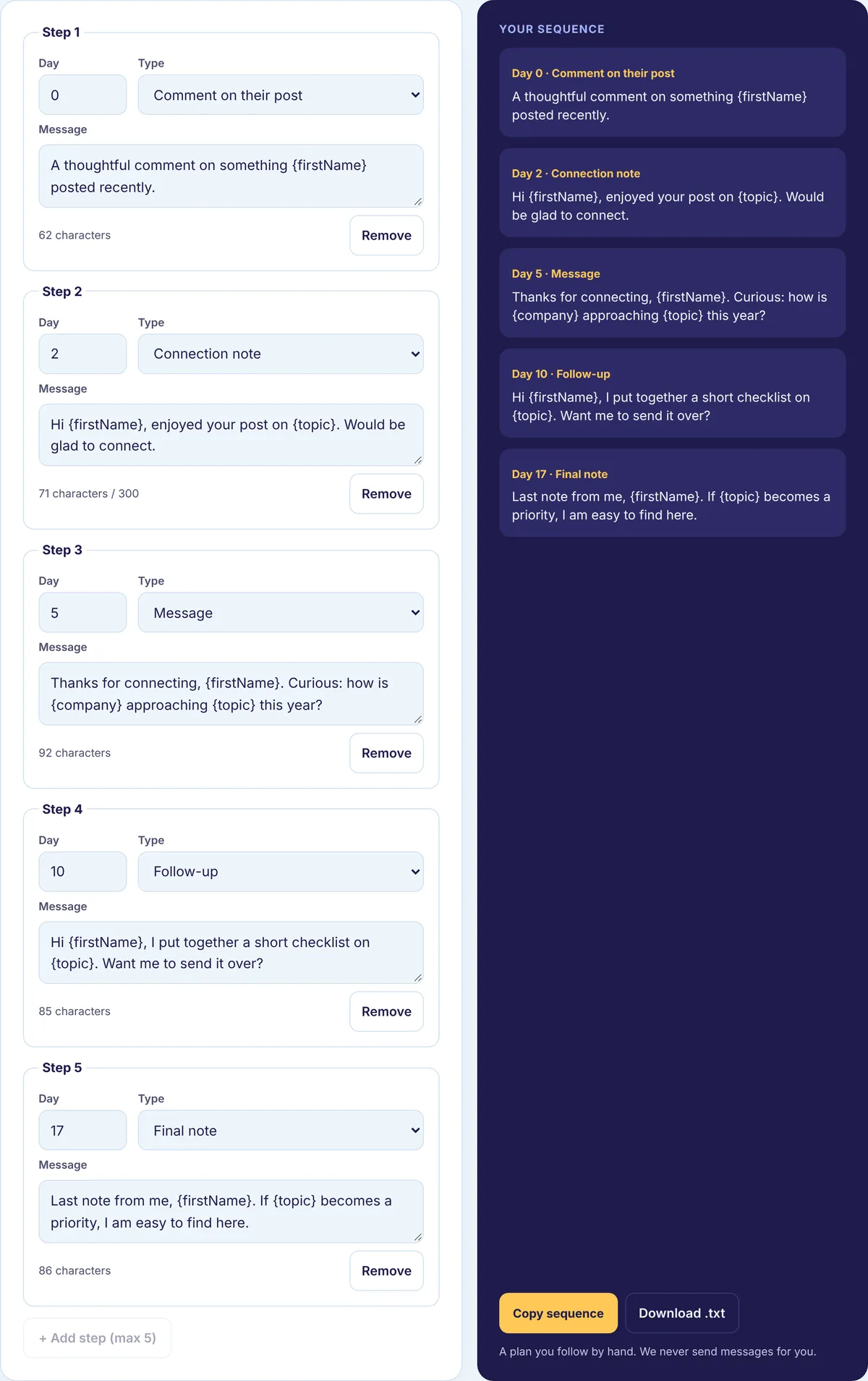
Sales Navigator finds and tracks people. It does not decide what to say or when. For the warming-up list, Jordan plans a short sequence of touches sent by hand:
- Comment on a recent post
- Send a connection request that mentions the trigger or the note
- Send a first message with something useful, like a short checklist
- Follow up once with something new
- Close politely if there is no reply
Jordan lays out the steps and dates in the free Outreach Sequence Builder, exports the plan, and works through it next to the Sales Navigator lists. The personal details from each lead’s note go into the messages, which the Personalization Tool helps fill in.
What Jordan does not do
- Build a list of 500 people. Nobody can research or follow up with that many properly.
- Treat InMail as free email.
- Ignore their own profile. Prospects look at it before they reply, so the headline and About section should explain who Jordan helps.
- Plug in automation tools. Sales Navigator does not send messages or requests for you, and third-party tools that automate it break LinkedIn’s rules and put the account at risk. Is LinkedIn automation safe? explains the risks.
End of the month: is it worth paying for?
At the end of the trial, Jordan compares the month with the one before: meetings booked from LinkedIn, replies, and time spent researching. That is the fairest test there is, because it uses your own pipeline instead of anyone’s marketing claims. Run the same comparison for yourself, and ask four questions alongside it:
| Question | If yes | If no |
|---|---|---|
| Do you prospect on LinkedIn every week? | It has room to pay off | Free search and a spreadsheet may be enough |
| Is finding the right people your bottleneck? | Search and lists help directly | If you know who to contact but get few replies, fix the messages first |
| Will you check alerts most days? | That habit is where the value is | The subscription alone does little |
| Will you use the InMail credits? | They add real reach | They are a minor extra |
If most answers are no, you can get far with free LinkedIn, a clear target list and good messages.
Plan your first sequence
Pick one saved list, the smaller the better, and plan three to five manual touches for it in the free Outreach Sequence Builder. For the full process from first touch to booked call, see our LinkedIn outreach section.