LinkedIn profile optimization is the work of making each part of your profile, from photo and headline to About, experience and skills, say clearly who you help and what you are good at, in the words your audience searches for. Fix the top of the profile first, because that is the part almost everyone sees.
Most weak profiles are not bad. They are vague. The headline repeats a job title, the About section reads like a cover letter, and the experience lists duties anyone in that role would have. So instead of a long lecture, this page starts with an audit you can run on your own profile in about twenty minutes, then explains each line of it.
Run the 20-minute audit
Open your profile on your phone, not your laptop. That is how a lot of people will see it. Go down the table and mark each row pass or fix.
| Part | Pass if | Free tool to fix it |
|---|---|---|
| Photo | Your face fills most of the circle and it looks like you today | Profile Photo Resizer |
| Banner | One readable line says what you do or who you help | Banner Maker |
| Headline | It names a role people search for, plus a proof point or audience | Headline Generator |
| About | The first two lines make sense on their own, and it ends with a clear next step | About Generator |
| Experience | Each recent role has at least one result, not only duties | Your own notes |
| Skills | The top skills match the work you want next | Your own judgment |
| Recommendations | At least a couple that mention a specific project | Recommendation Writer |
| URL and Featured | A clean custom URL and one or two pieces of proof pinned near the top | QR Code Generator |
Count your fixes. If the top three rows (photo, banner, headline) need work, start there and stop for today. Those three show up in search results, comments and invitations, so they pay off fastest. The rest can wait until next week.
Photo and banner: the two-second check
People decide whether to keep reading before they read anything. A clear, recent photo with good light and your face filling most of the circle does more than an expensive camera ever will. The circle is small in comments and message lists, so a full-body shot turns into a dot.
The banner is the widest space on the page, and a lot of people leave it as the default gradient. Put one line on it: who you help, what you build, or what you are hiring for. Keep the text away from the bottom left, where the photo sits on top of it. Our Banner Maker marks that safe area for you, and the exact pixel sizes live on our LinkedIn limits page.
Headline: where most of the gain is
Your headline follows you everywhere: search results, every comment you leave, every connection request you send. You get up to 220 characters. A structure that keeps working is role, result, audience. Use the title people actually type into search, add one proof point you can talk about, and say who you do it for.
Here is a worked example. The person is made up, but the pattern is a very common one.
Before:
Marketing Manager at Brightline
After:
B2B Content Marketing Manager | Grew organic demo requests for a SaaS team | Writing for founders and RevOps
The first version only tells a recruiter where she works. The second tells a recruiter what to search for to find her, gives a reason to click, and tells a founder whether she is relevant to them. It is also still well under the limit (see the counts further down).
For the full method, read How to Write a LinkedIn Headline, or browse headline examples by role. The Headline Generator writes three versions from your details and shows them on a live profile card.
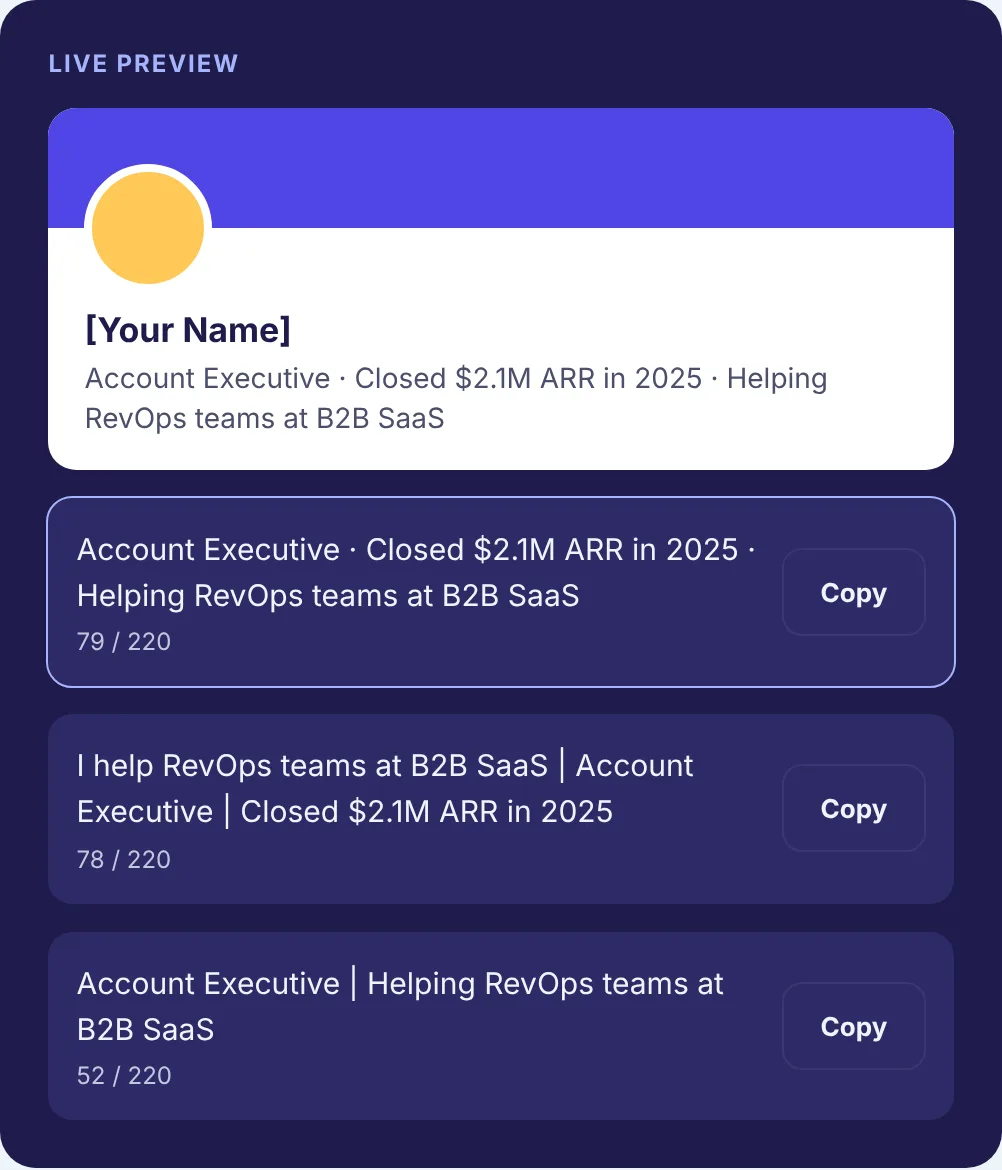
About section: write the first two lines last
Only the opening lines show before “see more”, so draft the whole section first and then write the opening once you know what matters most. Write in the first person. Say what you do and for whom, prove it with two or three specific results, name the skills you want to be found for, and end with how people should reach you.
A common trap is opening with “I am a passionate, results-driven professional”. Every third profile says that, which means it says nothing. Open with the work instead: “I help support teams cut the time it takes a new hire to close their first ticket.” Then back it up.
The About Generator drafts a structured section from facts you give it, does not invent results, and checks your draft against the 2,600 character limit. Want to see finished ones first? Our About section examples cover different roles and career stages.
Experience and skills: the proof
If the headline is the claim, experience is the evidence. For each recent role, write one line on the scope (team size, budget, market, whatever applies) and a few bullets on what changed because you were there. Numbers help, as long as they are true and you are happy to explain them in an interview. “Rebuilt the onboarding flow” is fine. “Rebuilt the onboarding flow; new users reached their first report in one session instead of three” is better, if it happened.
Use the job titles people search for, even if your company calls the role something creative. Then trim your skills list down to the work you want next and pin the most important ones at the top. A list of forty tools you touched once makes it harder, not easier, to tell what you are good at. Our guide on how to add skills on LinkedIn covers the order and how many to keep.
Recommendations, URL and the Featured section
Recommendations are other people vouching for you, so specific beats long. Two recommendations that each describe a real project will do more than ten that say “great to work with”. When you ask, remind the person of a project you did together so they have something concrete to write about. Writing one for someone else first is a good habit, and the Recommendation Writer helps you make it specific in a few minutes.
A custom profile URL looks cleaner on a resume and in an email signature. Once you have it, the QR Code Generator turns it into a code people can scan at an event. The Featured section is the spot for proof: a case study, a portfolio, a talk, or one post that represents your work well. One or two strong items beat six average ones.
How we checked the numbers on this page
We did not want to guess at character counts, so we ran the example headline above through the same counting function our Character Counter uses. It counts one character per Unicode code point. Here is what it returned:
- “Marketing Manager at Brightline” is 31 characters.
- The rewritten headline is 108 characters, so it uses about half of the 220 available.
- The words “Content Marketing” in plain text count as 17 characters. Converted to Unicode bold with our formatter, they still count as 17 characters, but they take 33 UTF-16 units under the hood, because each bold letter is a different symbol from outside the basic alphabet (the space stays plain).
That last point matters in practice. Bold letters are not a font. They are separate symbols, which is why some screen readers read them oddly and why plain words are safer for anything you want found in search. The glossary entry on Unicode text formatting explains this in more detail. In a headline, our advice is to keep it plain.
When to come back to this
Run the audit again when something changes: a new role, a promotion, a result you are proud of, or a change in what you want next. Otherwise, a quick pass once a quarter is enough to catch a stale banner or an old headline. If you want a longer, printable version of the audit, the LinkedIn profile checklist goes field by field.