Picture this. You sell onboarding software to customer support teams. On Tuesday you notice a post by Dana, a support director at a mid-size software company, about how messy her team’s first week for new hires is. She is exactly who you want to talk to. You have never met her, and you do not want your first message to read like every other pitch in her inbox.
That situation is what LinkedIn outreach is: starting a professional conversation with someone you do not know yet, through a connection request, a message, a follow-up or InMail. It works when it is targeted, personal and patient. You pick people with a real reason to talk, open with something specific to them, make a small ask, follow up once with something useful, and stop politely if there is no reply.
The rest of this page follows Dana’s case from start to finish. She and the company are fictional. The messages are real drafts we wrote and measured for this page, and every tool mentioned helps you write and plan. You send each message yourself.
Before you write anything: is there a reason?
Ask one question first. Can you name a reason to contact this person that would not apply to anyone else? In Dana’s case, yes: she wrote publicly about the exact problem you work on. Other good reasons are a mutual connection, an event you both attended, a company announcement, a job change, or a comment she left that you agreed with.
If the only reason is “she has the right job title”, hold off. Follow her, read a few of her posts, maybe leave a thoughtful comment on one. Ten people you have a real reason to contact are worth more than a hundred copies of one message. That is slower on purpose. Trust builds over several small touches, and a pitch in the first message usually ends the conversation before it starts.
Touch 1: the connection note
The note has one job: say in a sentence or two why you want to connect, and keep the ask tiny. Connecting is the ask. Here is the draft for Dana:
Hi Dana, your post on onboarding checklists for new CS hires was the clearest take I’ve read this month. I work on the same problem with support teams. Would be glad to connect.
Compare it with the default most people send: “Hi Dana, I’d like to add you to my professional network on LinkedIn.” Both are polite. Only one gives her a reason to say yes.
The Connection Message Generator fills notes like this with your details and checks them against the note limit: 200 characters on a free account, 300 with Premium. Our connection request templates cover cold, warm, alumni, event and recruiter situations if you want a starting point.
Touch 2: the first message after she accepts
Do not pitch yet. Thank her, connect back to the reason, and ask one question she can answer in a sentence without opening a calendar.
Thanks for connecting, Dana. Your point about giving new hires one named buddy stuck with me. Out of curiosity, how long does it take a new CS hire on your team to handle accounts on their own right now?
That question is easy to answer, it is about her work rather than your product, and her answer tells you whether there is a problem worth talking about. If you are reaching someone you are not connected to, InMail is the paid route. The Cold Message and InMail Generator writes two short versions from the reason you give it, and our guide on how to write a LinkedIn cold message covers the structure in more depth.
Touch 3: one follow-up with something new
Most first messages go unanswered because people are busy, not because they said no. A few business days later, send one follow-up that adds something instead of “just bumping this”:
Hi Dana, I put together a one-page checklist for a new support hire’s first week. Happy to send it over if it’s useful, no strings attached.
The Follow-up Message Generator and our follow-up templates cover after-connecting, no-reply, after-meeting and after-event cases.
Touch 4: the polite close
If two messages go unanswered, stop. A short close leaves the door open and keeps your name in good standing:
Hi Dana, I won’t keep nudging. If onboarding ever moves up your list, I’m easy to find here. Good luck with the new hires this quarter.
Closing out is not giving up. People remember who was respectful with their time, and some reply months later when the timing changes.
Put the touches on a calendar
Written down, Dana’s case is a five-step sequence: a comment on her post, the connection note, the first message, one follow-up, and the close. Planning it in advance means you never forget the follow-up and never send it the same afternoon. The Outreach Sequence Builder lays out the steps with dates and a purpose for each.
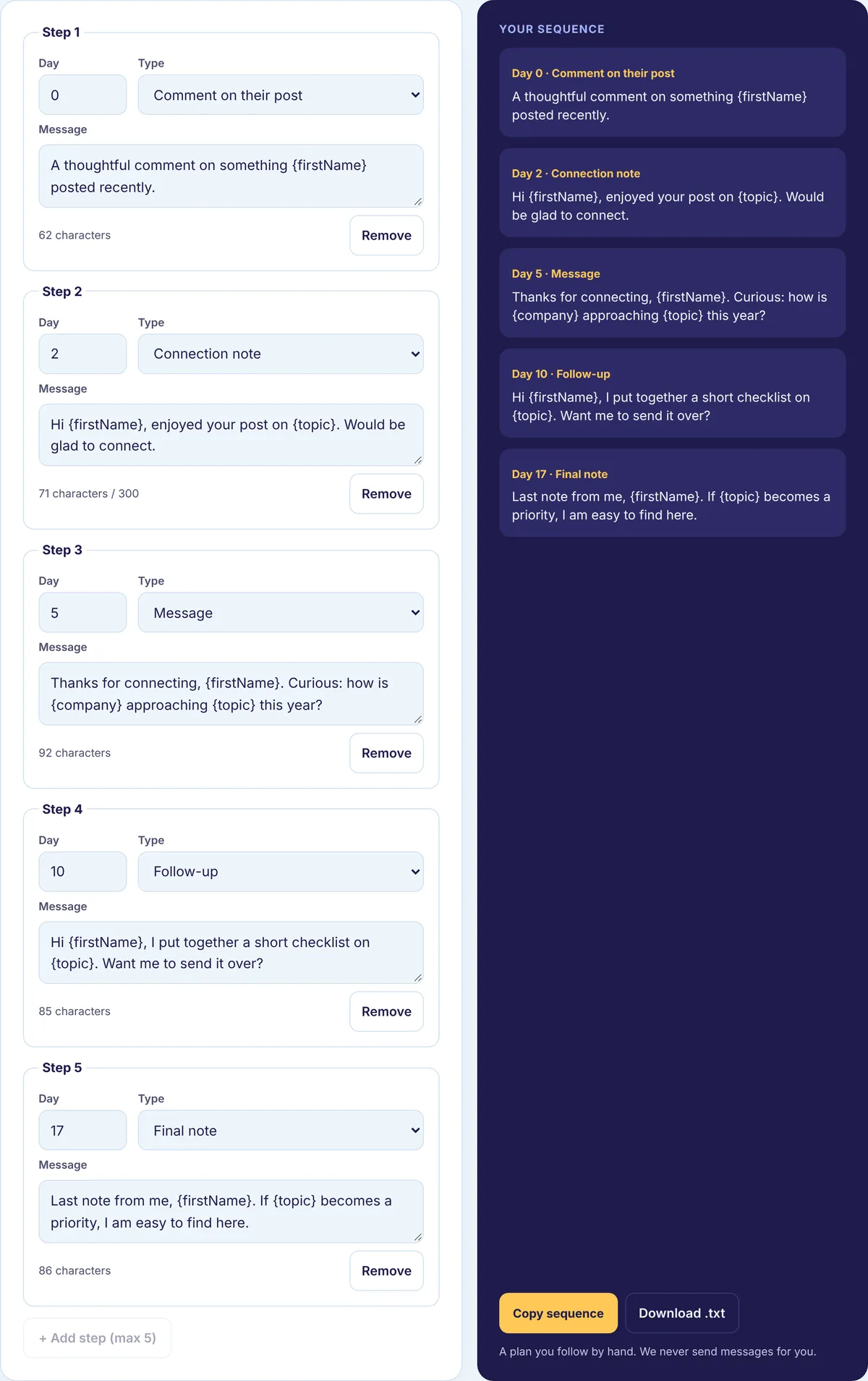
When you are writing to several people with the same structure, the Personalization Tool fills names, companies and one real detail per person from a simple list, and flags any row that is missing a detail. It never sends anything. You still read each message before it goes out, and that read is where you catch the line that does not fit.
How we checked the drafts
We ran every draft above through the counting function our Character Counter uses, which counts one character per Unicode code point. The results:
| Draft | Characters |
|---|---|
| Connection note to Dana | 177 of 200 |
| Generic “add you to my network” note | 68 |
| First message | 203 |
| Follow-up | 140 |
| Polite close | 135 |
Two things stood out. First, a specific note does not need to be long: the Dana note still leaves 23 characters of room on a free account. Second, emoji can count for more than they look. When we added a single waving hand with a skin tone to the end of the note, our counter went up by 3 (a space plus 2 code points for the emoji), while the text on screen only grew by what looks like one symbol and a space. Our counter errs on the high side in cases like this, which is the safe direction when you are close to a limit.
Measuring a batch
For a group of people rather than one, track three rates: how many requests are accepted, how many people reply, and how many replies turn into a meeting. Here is an example batch with made-up numbers, run through the same formulas the Acceptance and Reply Rate Calculator uses: 40 requests sent and 22 accepted is a 55.0% acceptance rate. Messaging those 22 and getting 7 replies is a 31.8% reply rate. Two meetings from those 7 replies is 28.6%, or one meeting for every 20 requests sent.
The weakest rate tells you what to fix. Low acceptance points at targeting and the note. Low replies point at the first message. Few meetings point at the ask. Compare your own batches over time; there is no universal number to hit.
A word on automation
LinkedIn’s rules do not allow automated connection requests, messaging or scraping, and accounts that use automation tools risk restrictions. Automated messages also read like automation, which defeats the point of everything above. That is why every tool here helps you write and plan, and you send each message by hand. Our guide Is LinkedIn Automation Safe? covers the details.