A LinkedIn content strategy is a short set of decisions you make once and then stick to: which few topics you post about, who you write for, how often you post, how each post is built, and how you check what worked. Most people skip the decisions and go straight to writing, which is why their posting stalls after three weeks.
You can make all of those decisions in one sitting. The table below is the whole strategy on one screen. The sections after it explain each row, and the end of the page carries one idea all the way from a rough note to a finished post.
The plan on one screen
| Decision | A sensible default | Where to get help |
|---|---|---|
| Topics | Two to four themes where your experience overlaps with what your audience worries about | Post ideas |
| Reader | One specific person you picture while writing | Your own customers, peers or hiring managers |
| Rhythm | One to three posts a week, at a pace you can keep for months | Best Time to Post |
| First line | A hook that makes sense alone and fits above “see more” | Hook Generator |
| Body | Short paragraphs, one idea, specifics over adjectives | Post Generator |
| Format | Plain text with line breaks; a carousel when the idea has steps | Text Formatter |
| Ending | A question someone can answer in one line | Comment Generator |
| Review | A look at your numbers once a month, not after every post | Engagement Rate Calculator |
Write your answers down somewhere you will see them. When you sit down to post and nothing comes, the table tells you what to write about and for whom.
Topics and reader: narrower than feels comfortable
Pick the overlap between what you know well and what your audience cares about. A customer success lead might choose onboarding, retention and managing a CS team. That is it. Writing about the same few themes is how people start to remember what you stand for, and it makes ideas easier to find because you know where to look.
Then picture one reader. A post written for “everyone in tech” ends up generic. A post written for a support manager who just hired three people this month gets specific without trying, and the right people recognize themselves in it. If you want to build a recognizable name around those themes, our personal branding guide goes deeper on choosing content pillars.
Myths that slow people down
“You need to post every day.” You do not. A steady rhythm you can keep for months is worth more than a burst of daily posts followed by silence. For most people that lands somewhere between once and a few times a week.
“Going viral is the goal.” A post that reaches the wrong crowd does nothing for you. Fifty comments from people in your field are worth more than a reach spike from strangers.
“Formatting is decoration.” On a phone, a wall of text gets skipped. Line breaks and short paragraphs are what make people read past the first line. Bold, done with Unicode characters, is for one line at most. Our guides on how to format a LinkedIn post and how to bold text on LinkedIn cover what to emphasize and what to keep plain.
“Hashtags bring the reach.” A few relevant ones help describe the post. They will not rescue a weak opening. The Hashtag Generator suggests small, focused sets if you want them.
Writing the post itself
Every post has three jobs. The first line earns the tap on “see more”. The body delivers what the first line promised. The ending gives people an easy way to reply. Stories, lessons, step-by-step tips and honest mistakes tend to work because they are specific.
Start with the opening. How to Write a LinkedIn Hook walks through six hook types, our hook templates give you fill-in-the-blank openers, and the Hook Generator writes options from your topic. For a full draft from your own notes, use the Post Generator. If you prefer to learn from finished posts, browse post examples.
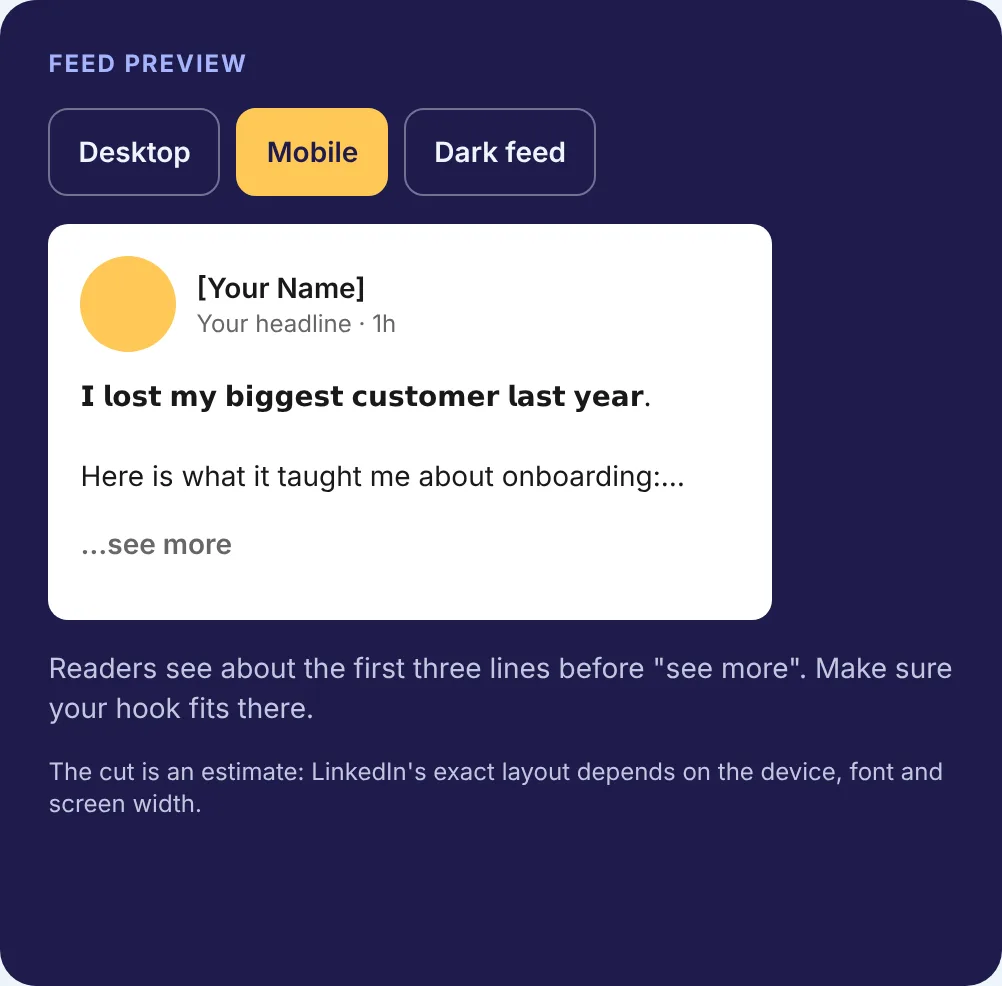
Before you publish, run two checks. Paste the draft into the Post Preview to see where “see more” cuts in on desktop and mobile, and use the Character Counter if you are anywhere near the 3,000 character post limit. Every limit our tools use is listed on the LinkedIn limits page.
Carousels, polls and comments
Use a carousel (a PDF uploaded as a document post) when the idea has steps: a framework, a checklist, a before and after. One message per slide, large text, the same colors throughout. How to Make a LinkedIn Carousel covers the process, and the Carousel Generator builds the PDF.
Polls are a low-effort way to ask your audience something. Keep the question to something people have an opinion on in two seconds. The Poll Idea Generator has questions that already fit the 140 character question and 30 character option limits.
Comments are where relationships form. Reply to people who comment on your posts, and leave a real comment on a few posts in your field each week: a point the author missed, a question, a short example from your own work. When you are stuck, the Comment Generator gives you a starting point.
One idea, carried through
Here is a worked example, start to finish. The person and the numbers are fictional; the process is the one this page describes.
The rough note, typed into a phone after a team meeting: “new hires take forever to close first ticket. we flipped training order, way faster.”
Topic check. It fits the onboarding theme. The reader is a support manager who is hiring. Good.
The hook. Three options from the hook types: a number (“3 weeks to 1 week”), a mistake (“We trained new hires backwards for two years”), a before and after. The before and after reads the most naturally out loud, so it wins.
The finished post:
New hires on our support team used to need three weeks before they closed a ticket alone.
We cut it to one week. Nothing fancy changed. We changed the order.
Before: product training first, tickets last.
After: one real ticket on day one, with a buddy, and training around the questions it raised.
Three things made the difference:
• A short list of “safe” ticket types for week one
• One named buddy, not “ask anyone”
• A 10-minute end-of-day recap
If you lead a support team, what does day one look like for your new hires?
What we checked. We ran this draft through the counting function behind our Character Counter. The whole post is 529 characters, well under the 3,000 limit. The first line alone is 89 characters. If you bolded that first line with our formatter it would still count as 89 characters, but it would take 161 UTF-16 units under the hood, because each bold letter is a separate symbol. That is one more reason we would leave the hook plain and let the words do the work.
After posting. Reply to every comment in the first hour or so, then leave it. Log the post in a simple sheet with the topic, the hook type and the format, so next month you can compare like with like.
Checking what worked
Once a month, look at your post analytics. Impressions tell you how far a post traveled. Engagement rate tells you how many of the people who saw it did something. The Engagement Rate Calculator shows both versions of the formula so you can use the same one every time. Compare your posts with each other, not with numbers from someone else’s account.
Change one thing at a time: the hook type, the format or the posting window. If you change all three in the same week, you will not know which one mattered. Our analytics guide explains how to set up that comparison.